How to Manually Import Additional Documents
- Log in to Tax Mobile App (Credentials are provided via email from Metik.)
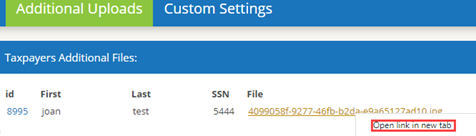
- Click on Additional Uploads tab

- Right click file hyperlink and select Open link in new tab
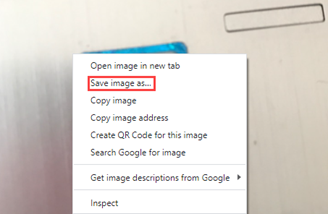
- Right-click on the image from the new tab and select Save image as to save to your PC.Â
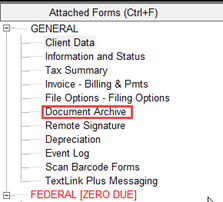
- Open the return and on the attached forms list on the left-hand side click on Document Archive.
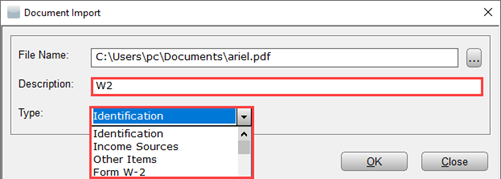
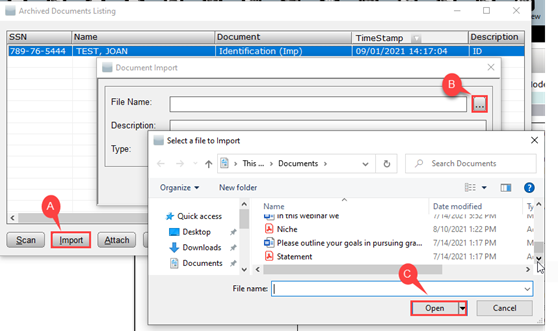
6. Click on Import (A) then select the three dots (B), to browse and locate the image saved on the PC. Highlight the image to select it and click Open (C).
- Enter a Description for the file and use the drop-down menu to select the file Type.