Entering a tax preparation fee
Adding preparation fees in a tax return manually is made available by the following two methods.
Method 1: Manually add a fee to the tax return invoice
1. Open the appropriate tax return and then click on Invoice – Billing & Pmts on the "Attached Forms" navigation pane. If you do not see the Invoice - Billing & Pmts form on the "Attached Forms" navigation pane, click Add Form and enter "Invoice" in the search box.
2. Specify the amounts you want to charge in Lines 4 through 9 of the Non-Financial Product Related Services/Charges. A total appears at the bottom of the tax return.
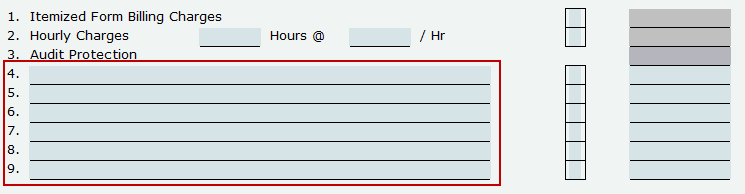
NOTE: The line numbers for the fields pictured above may vary from year-to-year. For example, program version 2010 uses Lines 9 through 14, while program version 2009 uses Lines 6 through 11. Be aware of these slight differences when entering your fee information.
Method 2: Manually add a fee to the bank application
This method may be useful if you do not normally use Billing Schedules, and the tax return requires the use of a Bank Application form.1. Open the appropriate tax return and then click on Bank App – Bank Application on the Attached Forms navigation pane.
2. Then specify the amounts you want to charge in the Tax Preparation Fee field.