
When exporting the software extended reports, the dates are not formatted in Microsoft Excel date format. The date can be converted into Microsoft Excel format by using a formula.
How to convert the software extended report dates into Microsoft Excel date format:
1. Create an extended report in the software with one or more date fields.
2. Click Export to export the report into Microsoft Excel.
3. Copy and paste the formula into an empty column in Excel. The formula is set up to convert dates from column D starting on row 2. If the date is in a different column or you are starting with a different row, you will need to modify the variables.
a. For the software 2013, the formula is: =IF(LEN(D2)=7,DATE(RIGHT(D2,4),LEFT(D2,1),MID(D2,2,2)), DATE(RIGHT(D2,4),LEFT(D2,2),MID(D2,3,2)))
b. For the software 2012 and below, the formula is: =IF(LEN(D2)=7,DATE(RIGHT(D2,4),LEFT(D2,1),MID(D2,2,2)), DATE(RIGHT(D2,4),LEFT(D2,2),MID(D2,2,2)))
4. Double click the small square at the bottom right of the field to apply the formula to all rows.
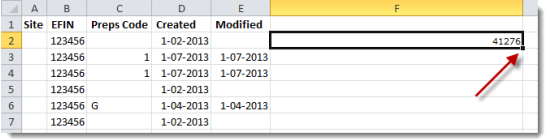
5. Right click the column header and then click Format Cells.

6. Select Date, highlight the desired formatting, and then click OK.

7. The dates should now exist in a Microsoft Excel format.
Article ID: 204
Created: Sat, Jul 23, 2016
Last Updated: Wed, Dec 21, 2016
Online URL: //kb.erosupport.com/article-204.html