How to Encrypt (or password-protect) Tax Return PDFs
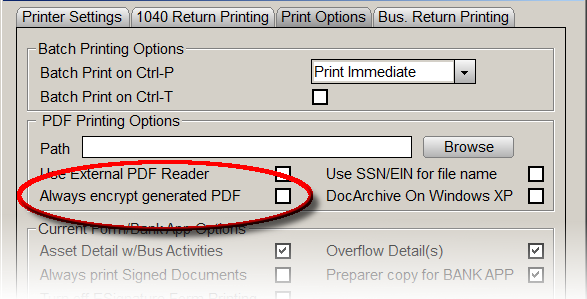
Configuring The Program 1040 to Automatically Encrypt All Tax Returns
The following provided steps are shown to encrypt tax return PDFs:
- From the top menu, select Setup->Printer Setup. The Application Settings window will open.
- Click the Print Options Tab.
- Check the Always encrypt generated PDF check box.
- Click OK.
All tax returns printed to PDF will now require a password to open.
Steps To Encrypt a Single Tax Return
- Open a completed return that has no errors.
- Click Print on the top toolbar.
- Select the Encrypt PDF check box, then click the PDF Button.
-
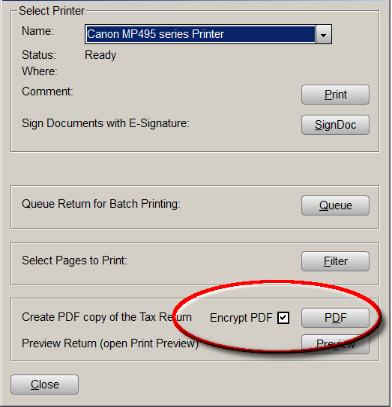
The PDF Password window will appear.
- To change the password from the displayed default, enter the new password. The password is case-sensitive.
- Click OK.
- Enter the PDF password and click OK. The PDF will open.
Article ID: 247
Created: Wed, Jul 27, 2016
Last Updated: Wed, Dec 28, 2016
Online URL: //kb.erosupport.com/article-247.html