
Preventing the Windows Security Warning
Â
NOTE: Exit all programs, including Internet Explorer (if it is running).
            inetcpl.cpl
      The Internet Options dialog box appears.
2. Click the Security Tab.
3. Click Local intranet.
4. Click Sites
5. In the "Local intranet" window, click the Advanced Button. Another Local intranet window will appear.
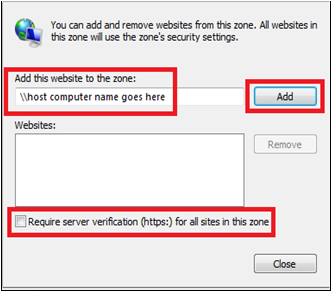
6. In the Add this website to the zone box, enter "Â \\hostcomputer," where hostcomputer is the name of the host computer, and then click Add.
7. Clear the Require Server verification (https://) for all sites in this zone check box, and then click Close.
Â
8. Close the 'Local intranet" window.
Possible additional steps
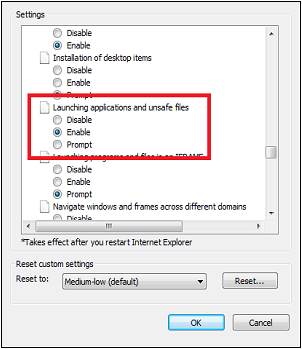
9. In the "Internet Properties" window, click the Custom Level Button.
10. Under Launching applications and unsafe files, click Enable (not secure).
11. Click OK.
Â
Â
Article ID: 248
Created: Wed, Jul 27, 2016
Last Updated: Fri, Nov 20, 2020
Online URL: //kb.erosupport.com/article-248.html