How to Configure Automatic Setup For Completing Preparer’s Information in a Tax Return
Setup & Configuring Paid Preparer
- Log into the program as a user with administrator rights.
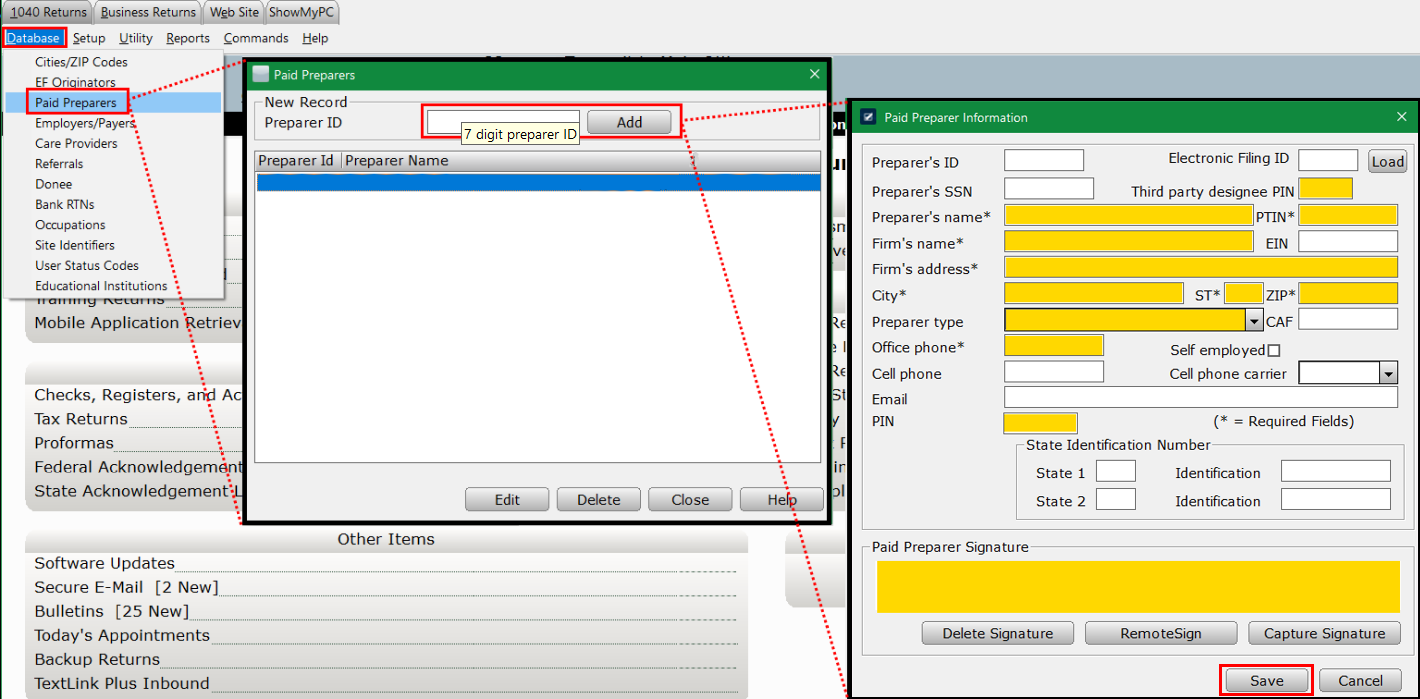
- From the top menu, select Database > Paid Preparers.
- Input Preparer ID (naming convention is Alpha/Numeric 7 digits).
- Selecting Add will prompt the data entry location for that Preparer (Suggested highlighted areas below).
- Click Save when completed.
Configuring Automatic Setup For Completing Preparer's Information (Link to Login Accounts)
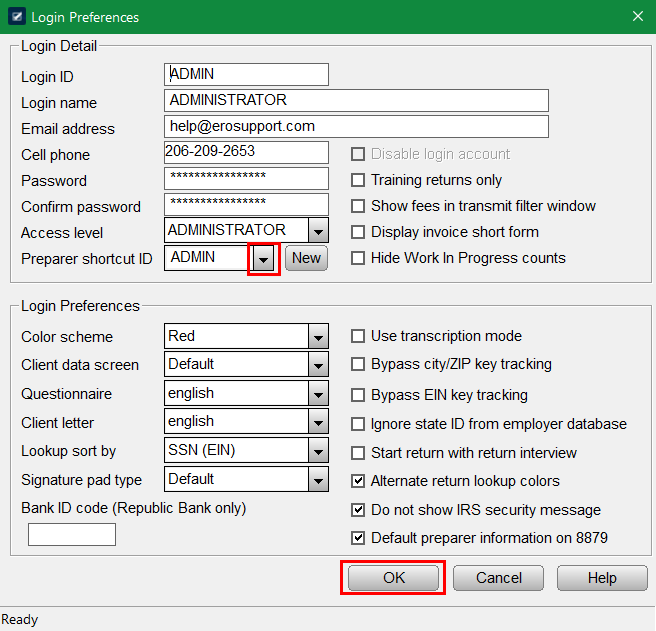
- From the top menu, select Setup > Login Accounts. The "Login Accounts" window will open.
- Select the login that needs the preparer linked.
- In the "Preparer Shortcut ID" field, use the dropdown to link correct preparer.
- Click OK to save the changes.Â
The program will now auto-populate preparer data in new tax returns when logged in as this user.Â
Article ID: 312
Created: Thu, Aug 18, 2016
Last Updated: Fri, Mar 17, 2023
Online URL: //kb.erosupport.com/article-312.html