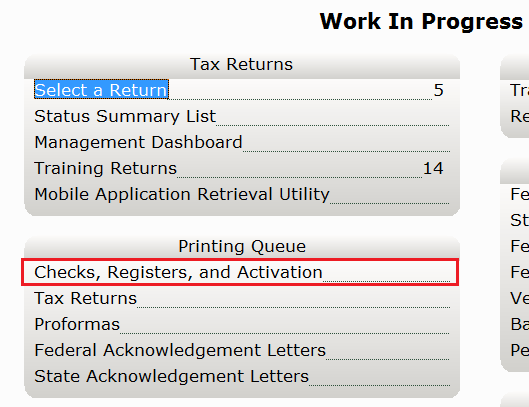
1. From the "Work in Progress" screen, in the Printing Queue panel, select Checks, Registers, and Activation.
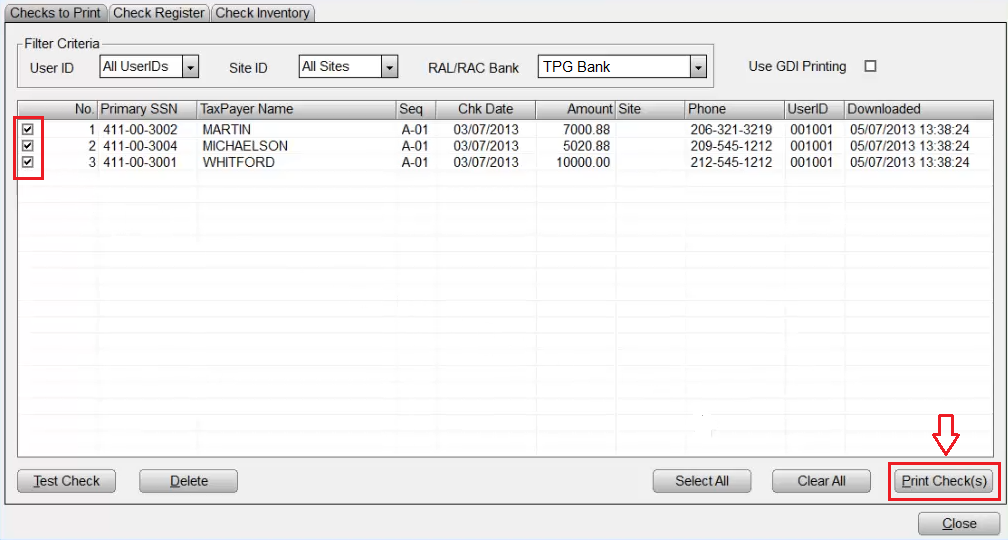
2. Under the Checks to Print Tab, select TPG from the RAC Bank drop down list, and select appropriate User ID and Site ID.
Â

3. Select the box next to each check to be printed, or click Select All to mark all the checks for printing.
Â

4. Check the printer to verify checks are properly loaded.
5. Click the Print Check(s)Â Button.
Â
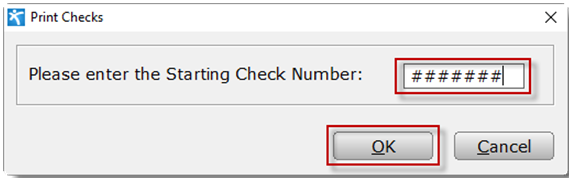
6. In the "Print Checks" window, enter the Starting Check Number, then click OK.
7. In the new "Print Checks" window, verify the quantity and starting number of the checks to be printed, and click OK.
Â

8. In the "Print window," verify that the correct printer is selected, then click Print.
Â

Finishing the Print Job
9. As each check is printed, it is removed from the list and included among the checks under the Check Register Tab.