How to Install State Packages
Installing a state package from within the program
- Create or open a tax return.
- Click Add Form.
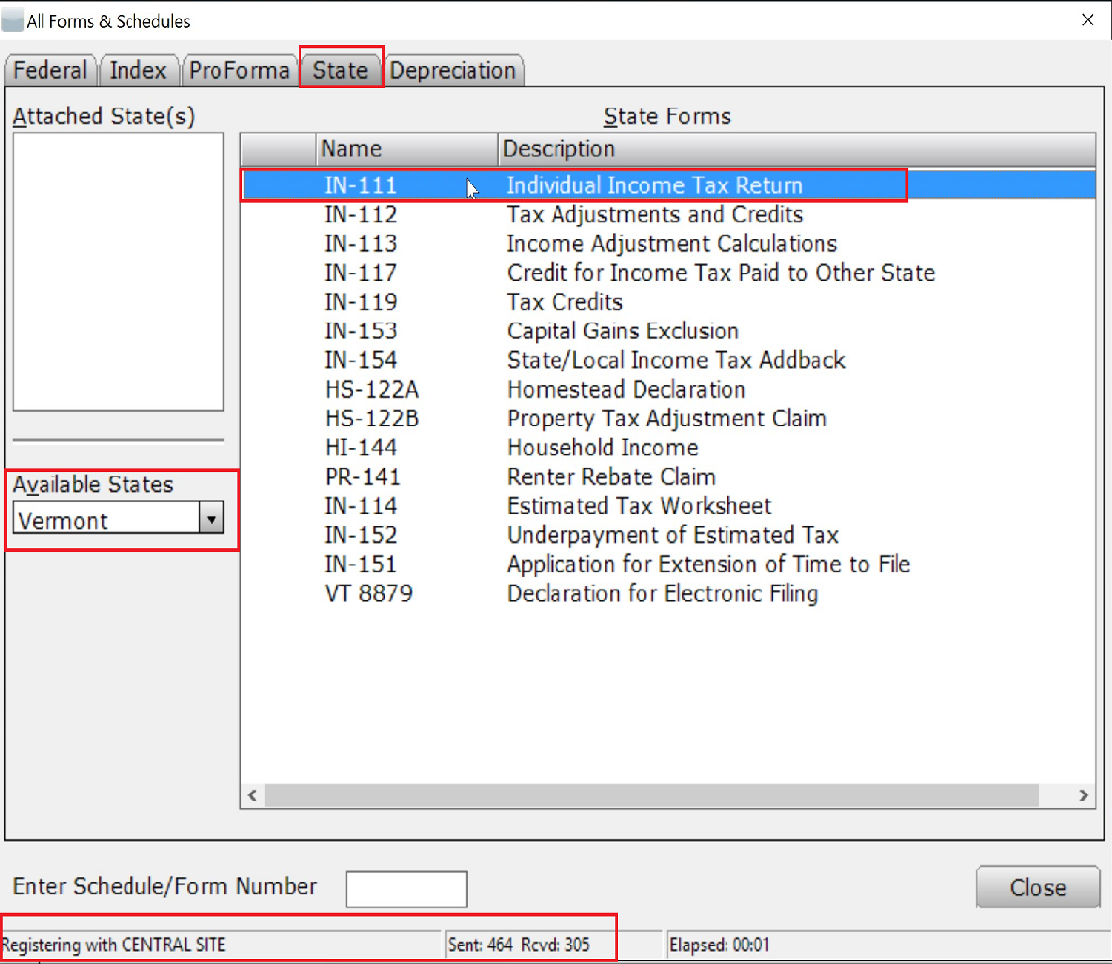
- Select the State Tab and use the drop-down menu to select from the Available States section.
- Select the form to be added by double clicking. In finding the state not currently installed, this will prompt the software to connect to the Central Site to queue state updates. If available, the state package is queued for pick up on next transmit.
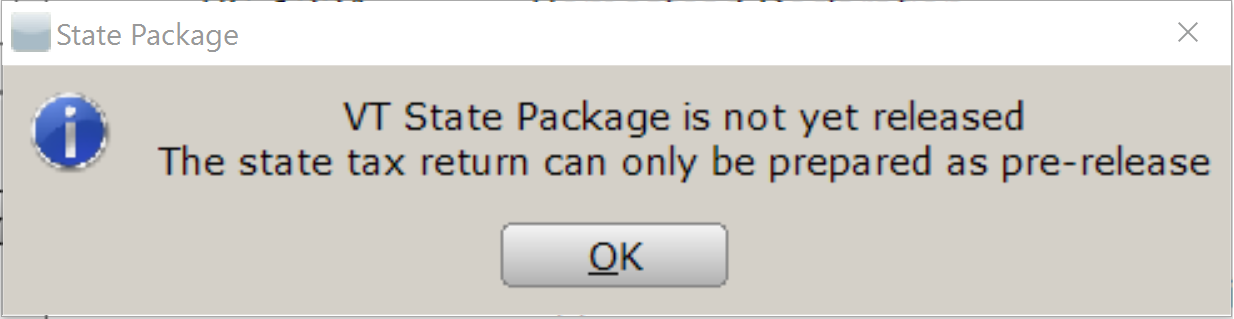
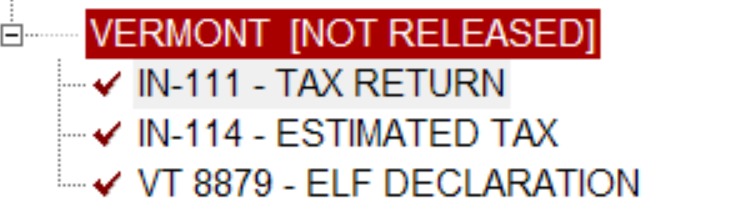
- A dialog box may pop up stating " XX State Package is not yet released. The state tax return can only be prepared as pre-release." Click OK and Close. This is expected behavior early in the tax season as each state releases at different times.The return can be proceeded with at this point, yet it is advised to update before progressing through the return as the state forms may have updates from the pre-released version. Important Note: It is recommended to check for software updates periodically.Â
- Save and Close the return.
- Click the WIP Button to return to the 'Work In Progress" screen. Click on Transmit to Central Site or Transmit to Main Site.
- Click Transmit. Once this completes, click OK to close the "Communications Successful" popup, then click OK to exit the window.
- Select Software Updates and Apply All. Once complete, select Restart.Â
- Log into the software. Any states previously queued up will now be available.Â
Article ID: 43
Created: Thu, Jul 14, 2016
Last Updated: Tue, Jun 13, 2023
Online URL: //kb.erosupport.com/article-43.html