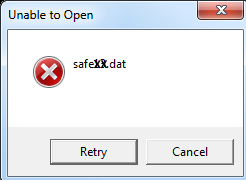
Error Message on Network Workstation: Unable to open safe.dat
Symptoms
When attempting to open the program on a network workstation, the following error message appears:
Cause
This issue occurs when the shared data folder is not shared with the full control permission.
Resolution 1:Â Share the folder with the full control permission
- Right click the item wanted to share, click Share with, and then click Specific people.
- In the File Sharing wizard, enter Everyone and then click Add.
- Under the Permission Level column, select Read/Write.
- Click Share. If prompted for an administrator password or confirmation, enter the password or provide confirmation.
- When completed, click Done.
Resolution 2: The program folder is set as Read-Only
To clear the Read-Only attribute from the folder and files, follow these steps from the host computer:
- In My Computer, browse to the drive where the program is installed.
- Right click the folder where the program is installed and click Properties. In most cases, the folder is named xlinkYY, where YY is the last two digits of the year experiencing the issue, for example, xlink10 is the 2010 folder.
- Clear the Read-Only check box and click Apply.
- Click Apply changes to this folder, subfolders and files, and then click OK.
Article ID: 535
Created: Thu, Sep 22, 2016
Last Updated: Tue, Nov 2, 2021
Online URL: //kb.erosupport.com/article-535.html