How to Format a Mailing List Using Word 2003 or Earlier
Formatting a Mailing List
- Log into the program as a user with Administrator rights.
- On the top bar, click Lookup.
- On the top bar, click Extended. The "Search Fields" window will open.
- Click Reports to open the reports list.
- Select Mailing Labels by Site and then click Load.
- Click OK to run the report.
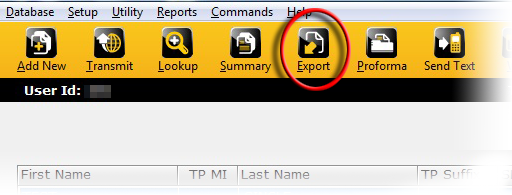
- On the top bar, click Export.Microsoft Excel will open.
- In Microsoft Excel, click Edit->Replace.
- In the Find what box, type “-0000-000”. Leave the Replace with box empty and then click Replace All. This step formats the ZIP Code properly.
- Click File->Save As. The "Save as..." window will open.
- In the Save as type list, choose “CSV (Comma delimited) (*.csv)”. Browse to the desktop and click Save (if a File Format warning dialog appears, click OK).
- Launch Microsoft Word.
- Click Tools->Letters and Mailings, and select Mail Merge.
- Under Select document type, click Labels and then click Next: Starting document.
- Under Select starting document, click Change document layout and then click Label options.
- Choose the appropriate mailing labels and then click OK.
- Click Next: Select recipients.
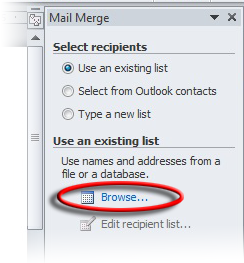
- Under Select recipients, click Use an existing list and then click Browse.
- Browse to the Excel file saved in Step 11 and then click Open.
- Click OK.
- On the "Select recipients" screen, click Next: Arrange your labels.
- Under Arrange your labels, click More Items..
- Double click on the fields desired for the labels. The following are recommended:
- First_Name
- Last_Name
- SP_First_Name
- SP_Last_Name
- Address
- City
- State
- Zip
- When finished adding fields, click OK.
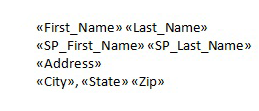
- Edit the fields on the Word document so they are in a correct mailing format. NOTE: Verify there is a space between items on the same line. It can be difficult to see the lack of a space. Suggested format is:
- Click Update All Labels.
- Click Next: Preview your labels.
- Verify the labels are appearing in the desired format.
- Click Next: Complete the merge.
- Click Print.
The mailing labels should now print.NOTE: It is recommended to initially print the labels on blank paper to ensure the text aligns properly on the mailing labels.
|
|
Article ID: 68
Created: Thu, Jul 14, 2016
Last Updated: Wed, Jan 18, 2017
Online URL: //kb.erosupport.com/article-68.html