How to Move EFIN (i.e., bank approval) Information From One Copy of The Program to Another
Moving EFIN Â Information
Â
Step 1: Back up files on up-to-date the program
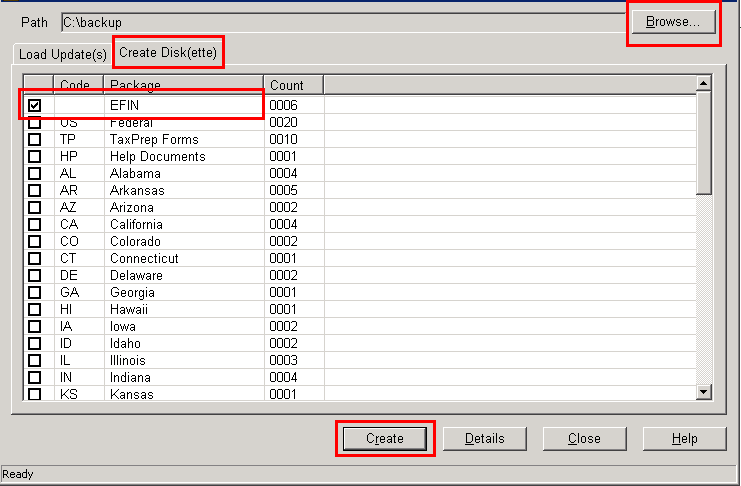
1. In the program, go to Utility>Updates and click the Create Disk(ette) Tab.
2. Select the EFIN check box (and any other updates to transfer), click Browse to select where to save the backup files, and then click the Create Button.
3. Move these backup files to the other computer using the preferred media (USB flash drive, CD, e-mail, etc.).
-
 Â
Â
Step 2: Load the backup files on the program that is out-of-date
1. In the program, go to Utility>Updates again. Click the Load Updates Tab.
2. Click Browse and browse to the location that contains the backed up EFIN information, and then click the Load button to load the EFIN information.
Â
DETAILED RESOLUTION STEPS
Step 1: Back up files on up-to-date the program
- On the Work In Progress Summary screen of the transmitting program, click the Utility menu and then click Updates.
- In the Software Updates window, click the Create Disk(ette) Tab.
- Click the Browse Button to browse to the location to save the EFIN information.
- Select the EFIN check box and then click the Create Button.
Step 2: Load the backup files on the program that is out-of-date
- On the Work In Progress Summary screen of the program that does not have the EFIN information, click the Utility menu and then click Updates.
- In the Software Updates window, click the Load Updates Tab.
- Click the Browse Button to browse to the location that contains the EFIN backup.
- Select the EFIN check box and then click the Load Button.
Â