How to Print Mailing Labels Using OpenOffice Writer
IMPORTANT:
The method below requires you to have OpenOffice Writer installed on your computer. OpenOffice can be downloaded from http://www.openoffice.org/download.
Printing mailing labels using OpenOffice Writer
1. Open the program.
2. Click Utility, then click Export Records.

3. From the "Export Name" drop down, select Complete Mailing List.
4. Click the "…" Button to open the "Save As" window.

5. Click Desktop and enter a File name, then click Save.

6. Click Export. Once the export has finished, click OK and then Close.

7. Open OpenOffice.org Writer.
8. From the "File" menu, click Wizards and then Address Data Source.

9. Select Other external data source and then click Next.

10. Click Settings.
11. Select Text from the "Database type’ drop down and then click Next.

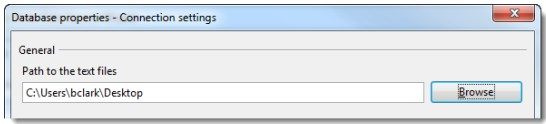
12. Click Browse and select the Desktop or path the mailing list data was saved to from the program, then click Next.
13. Select ‘Comma Separated value’ files (*.csv) and then click Finish.
NOTE: For program 2012 and older years, select Custom and enter “*.exp” in the Custom type box.

14. If OpenOffice.org Writer indicates more than one address book is present, select the filename created from the program "Export Records" and then click Next.

15. Click Field Assignment and match the fields as follows:
First name – First Name
Last name – Last Name
Street – Street Address
ZIP Code – ZIP Code
City – City
State – State

16. Click OK and then click Finish.
17. From the "File" menu, click New and then click Labels.

18. From the ’Database" drop down, select the "Database" type Addresses.

19. From the "Table" drop down, select the file name of the program "Mailing List" export.
20. Check the Address check box.
21. From the "Database" field drop down, select and click the Arrow Button to add the First Name, Last Name, Street Address, City, State, and ZIP Code.

22. Under the "Format" section, select the mailing label Brand and Type.

23. Click the Options Tab.
24. Check the Synchronize contents check box and then click New Document.

25. Format the first label and then click Synchronize Labels to update all labels.

26. From the "File" menu, click Print.
27. Click No when OpenOffice.org asks whether to print a form letter.

28. Choose the printer and print options. We suggest printing 1 page on plain paper to start with should the formatting need to be adjusted. Then click Print.

29. The mailing labels will print.
RELATED ARTICLES